To turn a photo into a jigsaw puzzle online, open the ZenJigsaw puzzle maker, press Choose a photo, and pick a picture from your phone or computer. The puzzle opens straight away, and you choose how many pieces it has, from about 12 to about 500. It is free, there is no account to create, and the photo is never uploaded: it stays on your own device.
The rest of this guide shows each step with real screenshots, explains which photos make the best puzzles, and answers the questions people ask most.
Step 1: Choose a photo
Go to the jigsaw puzzle maker and press Choose a photo.
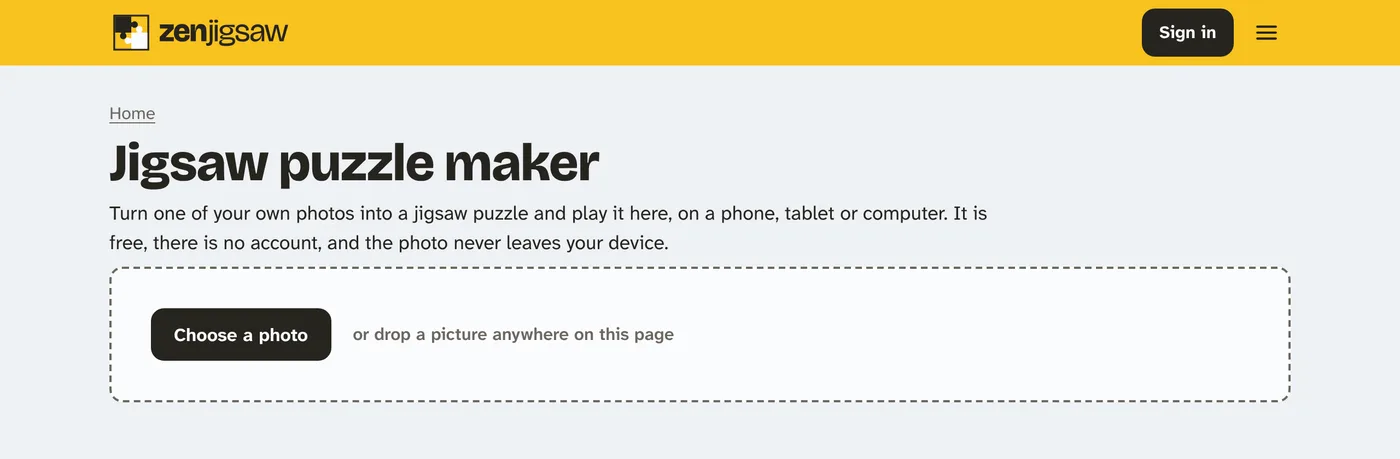
- On a phone or tablet, the button opens your photo library. Tap the picture you want.
- On a computer, the button opens your files. You can also drag a picture from a folder and drop it anywhere on the page.
JPEG, PNG and WebP pictures all work, and the picture needs to be at least 200 pixels on each side. Any photo taken with a phone is far bigger than that.
Step 2: Pick the number of pieces
The puzzle appears as soon as you choose the photo. There is nothing to wait for, because nothing is being sent anywhere.
Under the board there is a Pieces menu. Use it to cut the same photo into about 12, 24, 48, 96, 150, 250 or 500 pieces. You can change it as often as you like, and the photo is cut again each time.
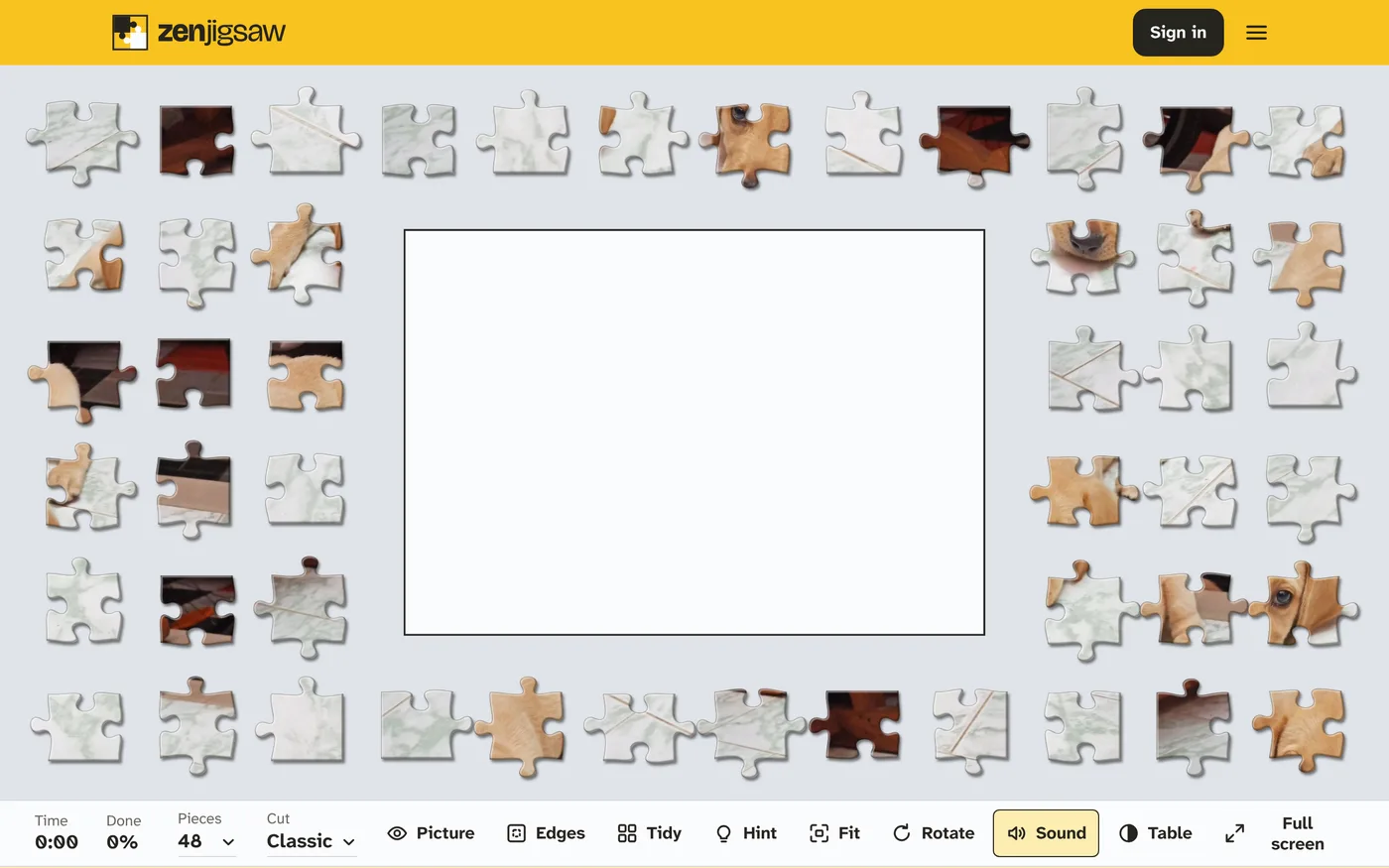
A rough guide to choosing:
| Pieces | Good for | Time to expect |
|---|---|---|
| 12 or 24 | Young children, a quick break, small phone screens | A few minutes |
| 48 or 96 | Most people, on any screen | 10 to 30 minutes |
| 150, 250 or 500 | A long, quiet session on a tablet or computer | An hour or more |
The times are only a starting point. A busy, colourful photo goes faster than one with a lot of sky.
Next to Pieces is the Cut menu. Classic gives the familiar knobs and holes. Wavy and Square are harder, because the shape of a piece tells you less about where it goes.
Step 3: Play
Drag a piece next to the one it belongs with and the two snap together. On a computer you can also click a piece once to pick it up and click again to put it down, so you do not have to hold the mouse button. Pinch or scroll to zoom in.
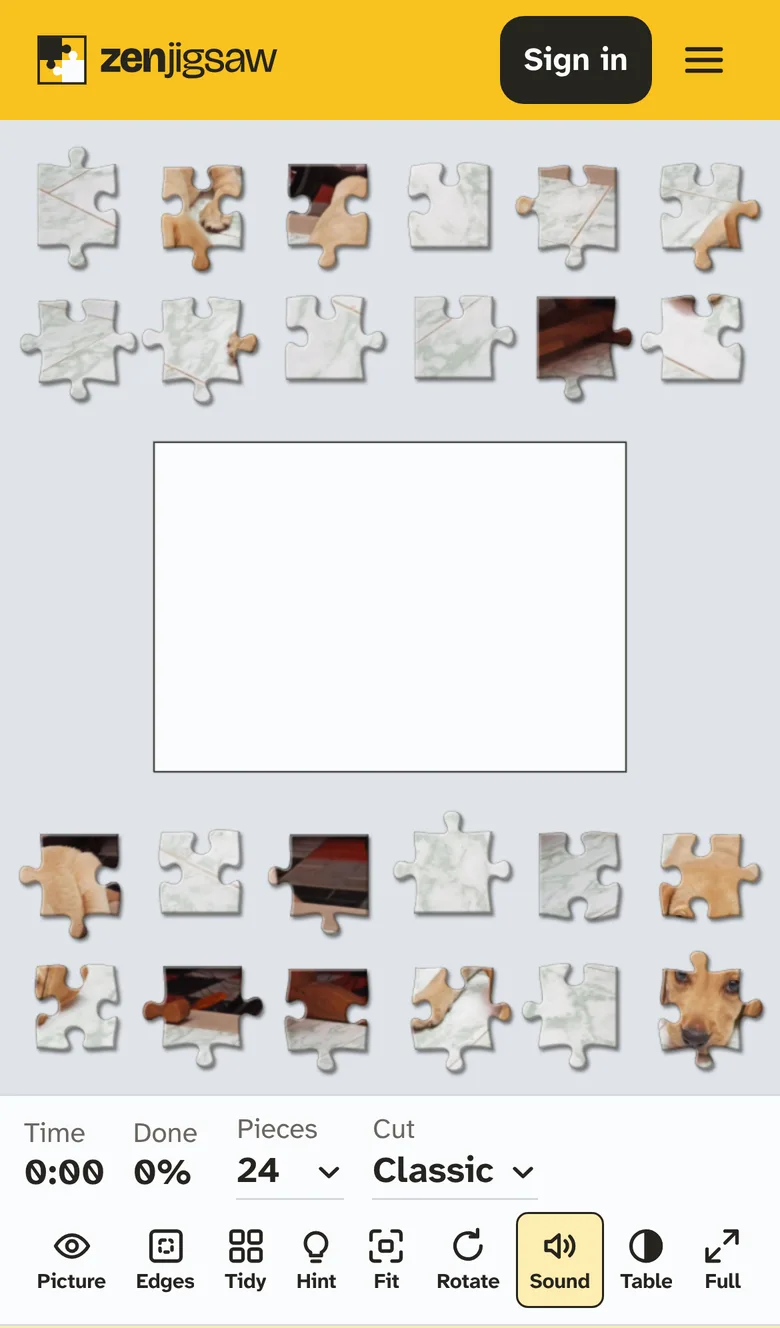
The buttons under the board help when you are stuck:
- Picture shows the finished photo for reference.
- Edges hides everything except the border pieces, so you can build the frame first.
- Tidy spreads the loose pieces out neatly.
- Hint makes the place of one loose piece flash on the board.
The board saves itself after every move. You can close the page, come back tomorrow on the same device, and carry on where you stopped.
Try a puzzle before you use your own photo
If you want to see how the board feels first, here is a 24 piece puzzle of a lighthouse at sunset. It plays right here on the page.
Which photos make a good puzzle
The photo matters more than the number of pieces. Three things make a puzzle pleasant instead of frustrating.
Several areas of different colour. A garden, a market stall, a group of people in bright clothes: each piece gives you a clue about where it belongs.
Detail from edge to edge. Large plain areas are the hard part of any puzzle. The puppy photo in this guide shows it well. The puppy itself is easy, but about half of the pieces are pale marble floor, and they all look alike. That is fine if you want a challenge, and tiring if you do not.
A sharp subject. A blurred background has the same effect as a plain one. Faces, fur, text, patterns and buildings all work well.
A few ideas that people enjoy:
- A family photo for a grandparent. Cut it into 24 pieces so it is quick and friendly, and send the photo with a link to the puzzle maker.
- A pet. Fur and eyes are full of detail, so pets make good puzzles.
- A holiday view. Towns, harbours and mountains work better than open sea or sky.
- A child’s drawing. Photograph it in good light. Children love putting their own picture back together.
- A class or team photo for a birthday or a last day of term.
Your photo stays private
Many puzzle makers ask you to upload your picture to their computers. This one does not.
When you choose a photo, your own browser opens it and cuts it into pieces on your device. The photo is not sent over the internet, it is not stored on ZenJigsaw’s servers, and nobody at ZenJigsaw can see it. That is why it is safe to use photos of your children or your home.
Your browser keeps one copy of the photo on your device, so that the puzzle is still there when you come back. Puzzles made from your own photos are also left out of your play history. To delete the photo, press Remove my photo under the board.
There is one thing this means you cannot do: share the puzzle as a link. Since the photo exists only on your device, a friend who wants to play it needs the photo too. Send it to them and they can make the same puzzle in ten seconds.
If you want a printed puzzle
ZenJigsaw makes puzzles to play on a screen. It does not print or post cardboard puzzles. If you want one in a box, you will need a photo printing service.
It is still worth trying the photo here first. A printed puzzle costs money and takes days to arrive, and a photo that looked lovely in a frame can turn out to be 300 pieces of sky. Ten minutes with the online version tells you whether the picture is fun to put together.